Stack and organize your tabs — group by domain or AI, save sessions, focus mode with distraction blocking, close duplicates, and sleep idle tabs.
Stack and organize your tabs — group by domain or AI, save sessions, focus mode with distraction blocking, close duplicates, and sleep idle tabs.
Everything you need to tame tab chaos.
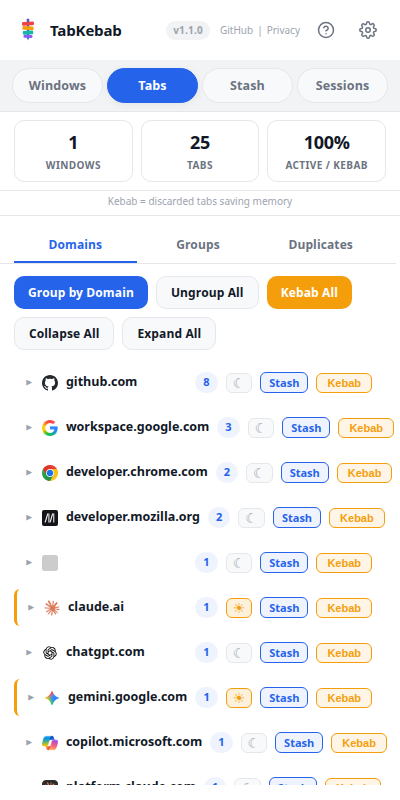
View all tabs by domain, find and close duplicates, search across all windows. A complete overview of every open tab.
Time-bounded productivity sessions with distraction blocking. 4 profiles (Coding, Writing, Research, Meeting), live countdown, and session reports.
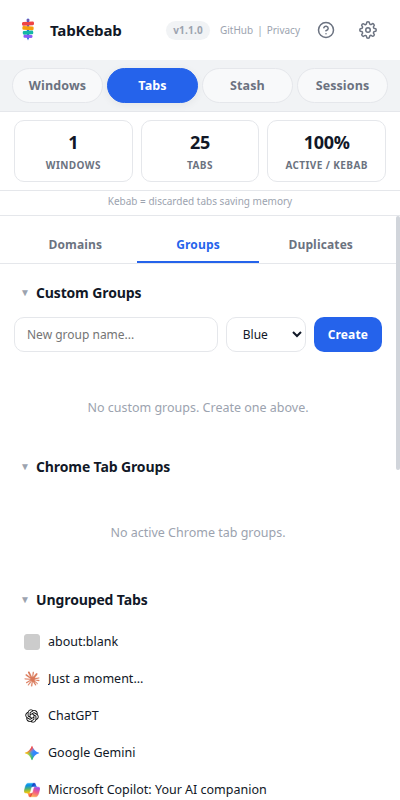
Group tabs by domain or let AI create smart contextual groups. Drag-and-drop custom groups with color coding.
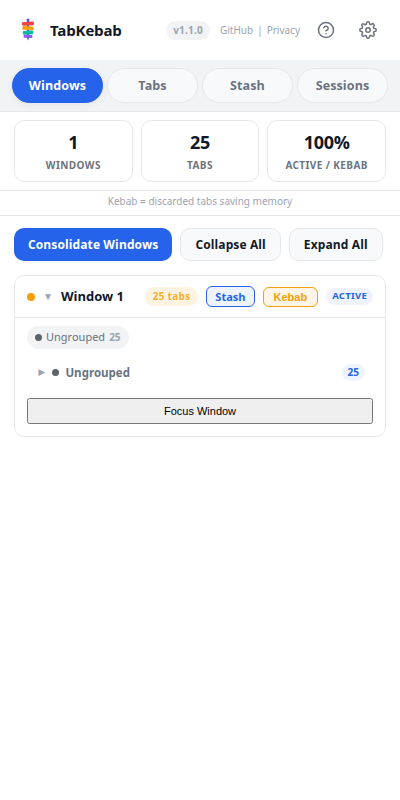
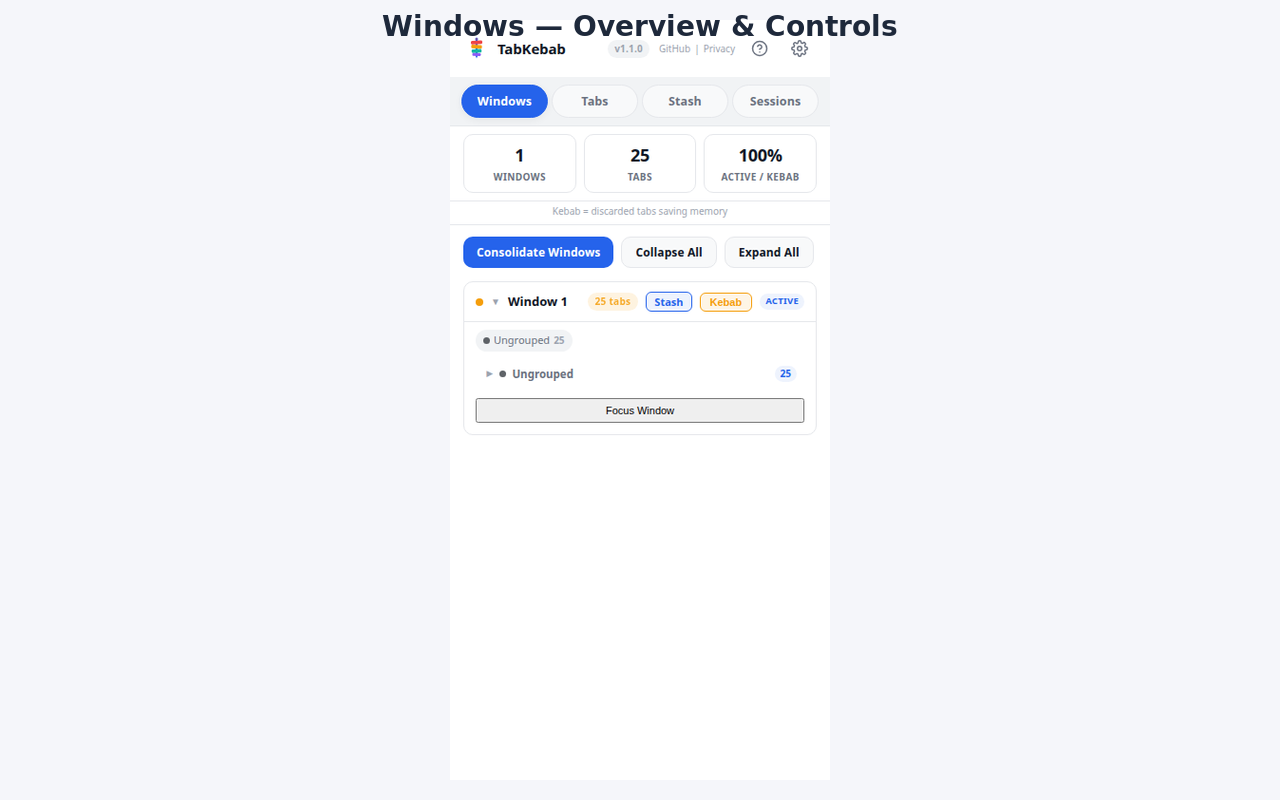
See all open windows with tab counts, memory warnings, and group summaries. Consolidate scattered windows with one click.
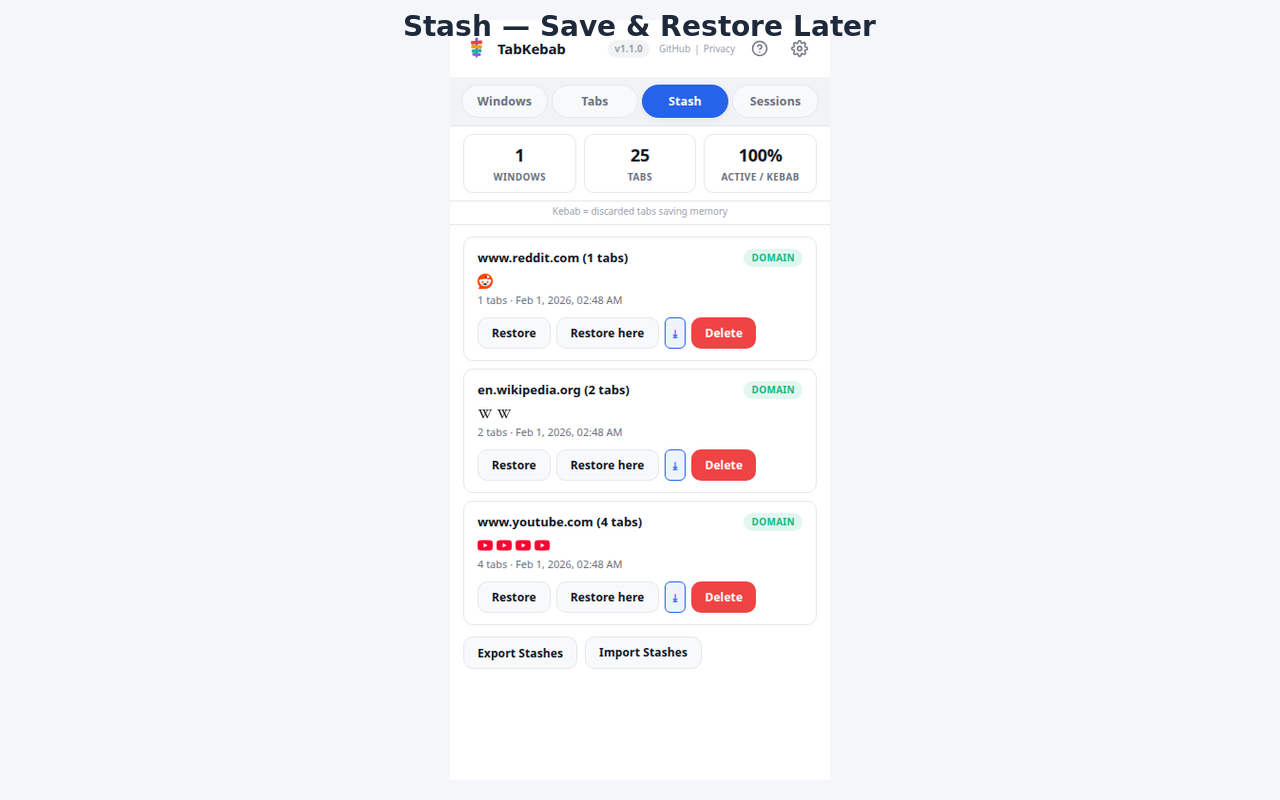
Save and close tabs to free resources. Restore later with batched loading so tabs don't all fire at once.
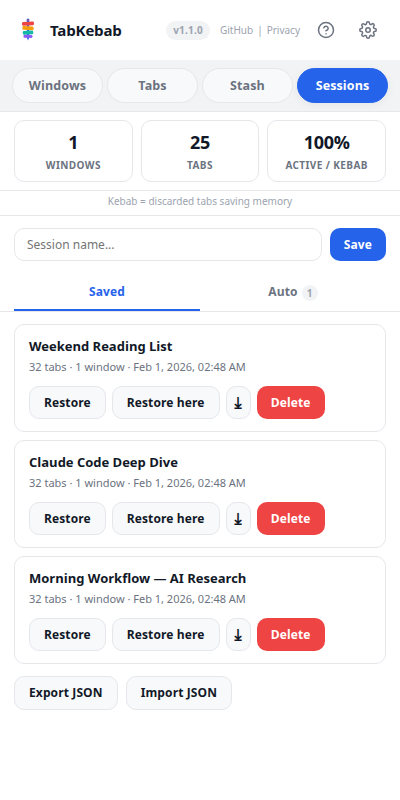
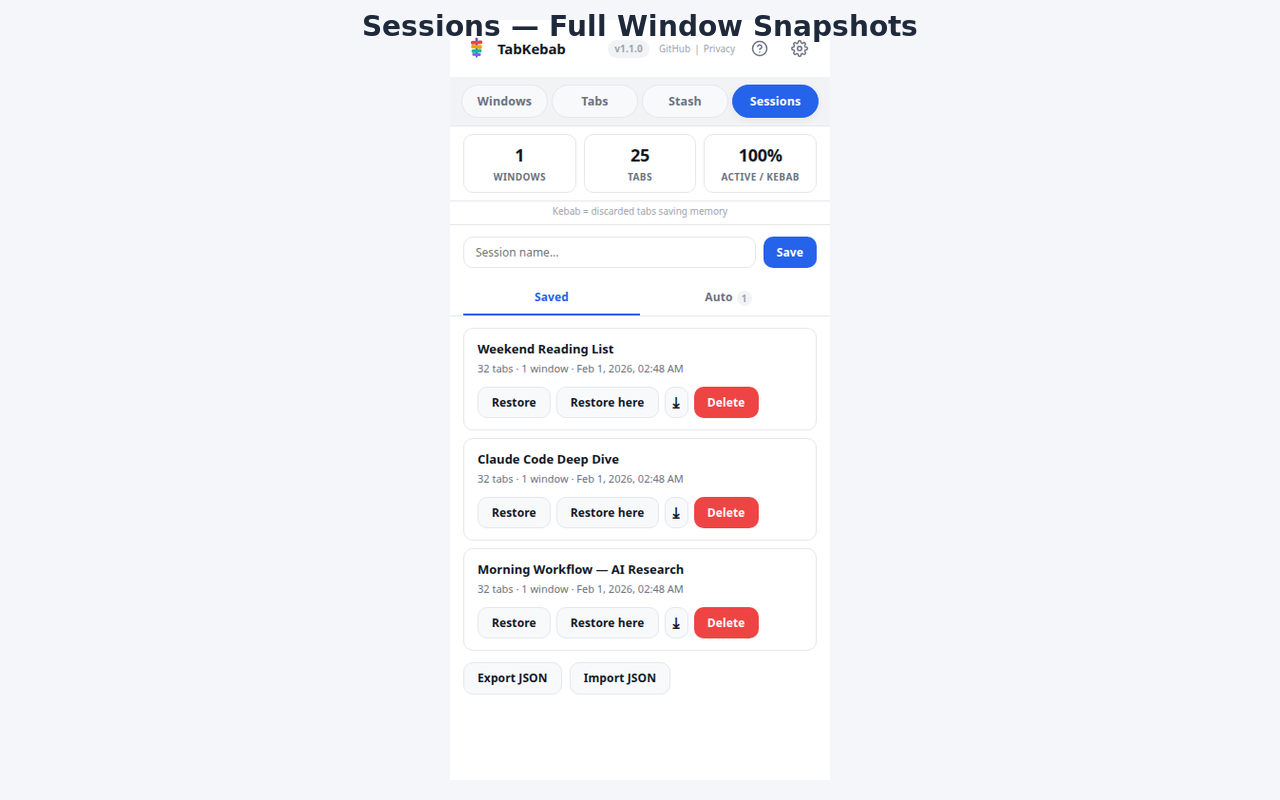
Save full snapshots of every window, tab, and group layout. Auto-saves on start and at intervals. Export and share.
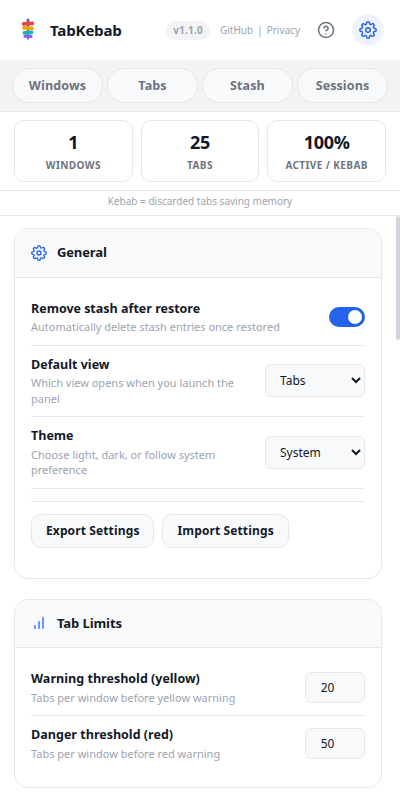
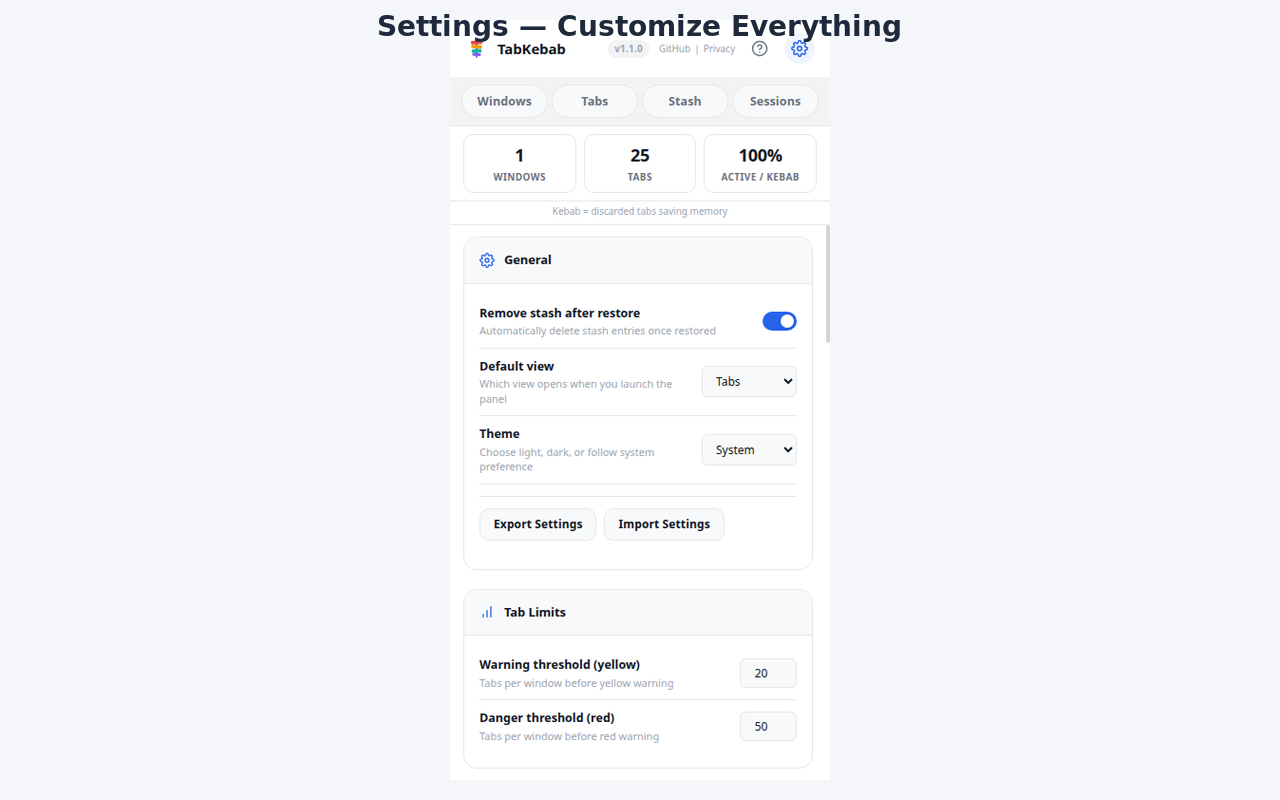
Choose from 5 AI providers, configure automation, sync to Google Drive, and customize every aspect of TabKebab.
High-resolution screenshots from the Chrome Web Store listing.
Everything you need to know about TabKebab.
git clone https://github.com/michelabboud/tabkebab-chrome-ext.gitchrome://extensionsThe side panel opens on the right side of your browser and stays open as you browse.
On first launch, TabKebab opens to the Tabs view showing all tabs in your current window. The four main views are:
| Tab | Purpose |
|---|---|
| Windows | Overview of all browser windows with tab counts |
| Tabs | Live tab list with grouping, search, and management |
| Stash | Saved tab collections stored in IndexedDB |
| Sessions | Full browser state snapshots |
The header shows the TabKebab logo, a version badge, quick links to GitHub and the Privacy Policy, a help button (?), and a gear icon for Settings.
Below the navigation bar, a fixed stats bar displays three cards:
| Stat | Meaning |
|---|---|
| Windows | Total open browser windows |
| Tabs | Total open tabs across all windows |
| Active / Kebab | Percentage of tabs that are active (not discarded) |
Four tabs switch between the main views. The active tab is highlighted with an accent underline. Each view retains its scroll position.
When AI is configured, a multi-line command bar appears below the stats bar. Type natural language commands and press Enter to send (or Shift+Enter for a new line).
The Tabs view is the primary workspace. It has a toolbar row and four sub-views.
Shows every tab in the current window as a flat list with favicon, title, URL, and status indicator.
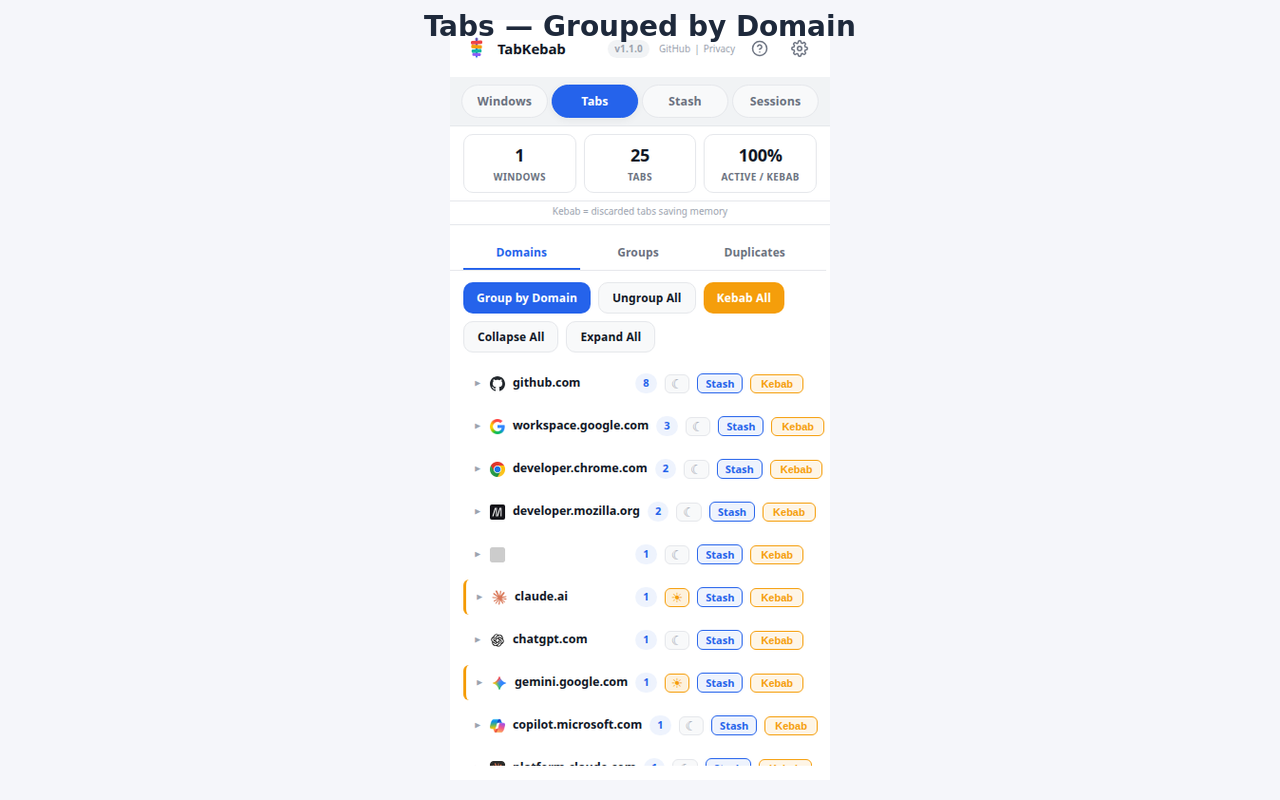
Tabs grouped by their domain name. Each domain section shows the domain name and tab count badge, and is collapsible.
Tabs organized by native Chrome tab group with color dot and name. Includes collapsible group headers.
A unified editor for managing tab groups with Custom Groups (drag-and-drop, smart search), Chrome Tab Groups, and Ungrouped Tabs.
The Group dropdown offers: By Domain, Smart (AI), and Ungroup All. Grouping shows a 4-phase progress indicator: Snapshot, Solving, Planning, Executing.
The Duplicates sub-tab shows a red badge with the count of extra duplicate copies. Click Scan for Duplicates to refresh. Results include checkboxes and bulk-close with undo support.
Each card displays the window number, tab count badge with color coding (green/yellow/red thresholds), and a focused window indicator.
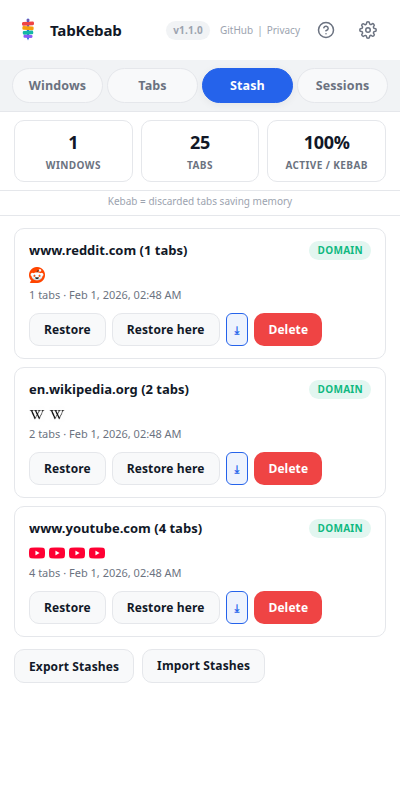
Stashing saves tabs and closes them, freeing browser resources while preserving your work.
Use the Stash dropdown: Stash Window, Stash by Group, Stash by Domain, or Stash All.
Stashes appear as cards with name, tab count, favicon previews, source badge (Window/Group/Domain/All), restored badge, and timestamp.
Click Restore. Small stashes (under 20 tabs) open at once. Large stashes use pipeline restore with batched creation, background loading, and a progress bar.
Sessions capture a complete snapshot of your browser state — all windows, tabs, groups, and metadata.
Type a name and click Save (or press Enter). The snapshot is saved to chrome.storage.local.
TabKebab automatically saves a session on browser start and at regular intervals (default: every 24 hours). Auto-saves keep the last 7 days, with at least 2 always preserved.
Click Restore to open in new windows matching the original layout. Click Restore here to open all tabs in the current window. Already-open tabs are skipped.
Focus Mode is a time-bounded productivity feature that helps you stay on task by blocking distractions.
| Profile | Color | Suggested Duration | Focus |
|---|---|---|---|
| Coding | Cyan | 50 min | GitHub, GitLab, Stack Overflow, MDN, localhost |
| Writing | Purple | 25 min | Google Docs, Notion, Grammarly |
| Research | Green | 45 min | Wide browsing allowed |
| Meeting | Blue | 60 min | Meet, Zoom, Teams, Docs |
Three blocking modes available:
When you navigate to a blocked site, TabKebab redirects you back and increments the distraction counter.
When a session ends, you see a report with:
The last 50 sessions are saved in Focus History.
Your choices (categories, allowlist, duration, tab action) are remembered per profile. Next time you select Coding, your previous Coding preferences are restored.
"Kebab" means discarding a tab — Chrome keeps it in the tab strip but unloads it from memory. The tab reloads when you click on it.
The Kebab dropdown offers: Kebab Domain, Kebab Group, Kebab Window, or Kebab All.
Some tabs should never be discarded (email, calendars, real-time tools). Default protected domains include: gmail.com, calendar.google.com, outlook.com, slack.com, teams.microsoft.com, discord.com, and others.
Manage the list in Settings > Tab Sleep: add, remove, use AI suggestions, or reset to defaults.
In Settings > Automation, set Auto-kebab idle tabs to a number of hours. Tabs idle longer are automatically discarded. The keep-awake list is respected.
Set Auto-stash inactive tabs to a number of days. Tabs inactive for longer are automatically stashed and closed.
TabKebab can create organized bookmarks from your current tabs in three formats.
| Format | Hierarchy |
|---|---|
| By Windows | TabKebab / date / Windows / Window 1 / tabs |
| By Groups | TabKebab / date / Groups / group name / tabs |
| By Domains | TabKebab / date / Domains / domain / tabs |
| Destination | Storage |
|---|---|
| Chrome Bookmarks | Folders in Chrome's bookmark bar under "TabKebab" |
| Local Storage | chrome.storage.local (max 50 snapshots) |
| Google Drive | JSON to TabKebab/{profile}/bookmarks/ |
| All | Saves to all three destinations |
Enable HTML bookmarks to Drive to upload a self-contained, browsable HTML page with tab navigation, live search, collapsible groups, and dark/light mode.
When an AI provider is configured, the command bar appears at the top of the panel.
| Command | What it does |
|---|---|
| "close YouTube tabs" | Closes all tabs with YouTube URLs |
| "find my GitHub tabs" | Highlights/filters GitHub tabs |
| "group by project" | AI groups tabs by inferred project context |
| "close all shopping tabs" | AI identifies and closes shopping-related tabs |
| "stash all social media" | Stashes tabs the AI classifies as social media |
| "how many tabs do I have?" | Returns tab count information |
Your command and current tab list (titles + URLs) are sent to the AI provider. The AI returns structured actions which TabKebab executes. Commands never send page content, cookies, passwords, or browsing history.
Google Drive/
  TabKebab/
    {profile name}/
      tabkebab-sync.json
      tabkebab-settings.json
      sessions/
      stashes/
      bookmarks/
archive/Auto-delete files older than N days (default: 30). Override with "Never delete from Drive". Files are archived before overwrite.
| Provider | Models | API Key | Notes |
|---|---|---|---|
| OpenAI | GPT-4.1, GPT-5, o4-mini | Yes | Most popular |
| Anthropic Claude | Haiku, Sonnet, Opus | Yes | Strong reasoning |
| Google Gemini | 2.5 Flash, 2.5 Pro, 3.0 | Yes | Google's models |
| Chrome Built-in AI | Gemini Nano | No | On-device, no API key |
| Custom Endpoint | Any | Depends | OpenAI-compatible API |
AI responses are cached locally (LRU, max 200 entries, 24-hour expiry) to avoid redundant API calls.
| Setting | Default | Description |
|---|---|---|
| Remove stash after restore | On | Auto-delete stash entries once restored |
| Default view | Tabs | Which view opens on launch |
| Theme | System | Light, Dark, or follow system preference |
| Setting | Default | Description |
|---|---|---|
| Warning threshold (yellow) | 20 | Tabs per window before yellow badge |
| Danger threshold (red) | 50 | Tabs per window before red badge |
| Setting | Default | Description |
|---|---|---|
| Auto-save interval | 24 hrs | Hours between automatic session saves |
| Auto-save retention | 7 days | Days to keep auto-saved sessions |
| Auto-kebab idle tabs | 0 (off) | Discard tabs idle for N hours |
| Auto-stash inactive tabs | 0 (off) | Stash tabs inactive for N days |
| Setting | Default | Description |
|---|---|---|
| By Windows / Groups / Domains | Off | Bookmark format selection |
| Destination | Chrome | Where to save (Chrome / Local / Drive / All) |
| Auto-bookmark on stash | Off | Create bookmarks when stashing tabs |
| Compressed export | Off | Compact JSON without whitespace |
| HTML bookmarks to Drive | Off | Upload browsable HTML alongside JSON |
| Setting | Default | Description |
|---|---|---|
| Auto-export sessions | Off | Include sessions in Drive sync |
| Auto-export stashes | Off | Include stashes in Drive sync |
| Auto-sync interval | 0 (manual) | Hours between automatic syncs |
| Drive retention | 30 days | Auto-delete files older than this |
| Never delete from Drive | Off | Override retention, keep all files |
In Settings, use Export All to download a JSON file containing all sessions, stashes, custom groups, settings, and the keep-awake domain list.
Use Import to load a previously exported JSON file. This merges with existing data (doesn't overwrite unless there are conflicts).
| Key | Action |
|---|---|
| 1 | Switch to Windows view |
| 2 | Switch to Tabs view |
| 3 | Switch to Stash view |
| 4 | Switch to Sessions view |
| F | Open Focus Mode |
| / | Focus the AI command bar |
| ? | Toggle the help overlay |
| Esc | Close help/settings overlay |
Large session restores create many tabs at once. The pipeline restore mitigates this, but Chrome may be sluggish momentarily. Wait for the progress bar to complete.
chrome://flagsStashes are stored in IndexedDB, which is per-profile. If you switched Chrome profiles, your stashes are in the other profile's storage.
chrome://extensionsFound a bug or have a suggestion? We'd love to hear from you.